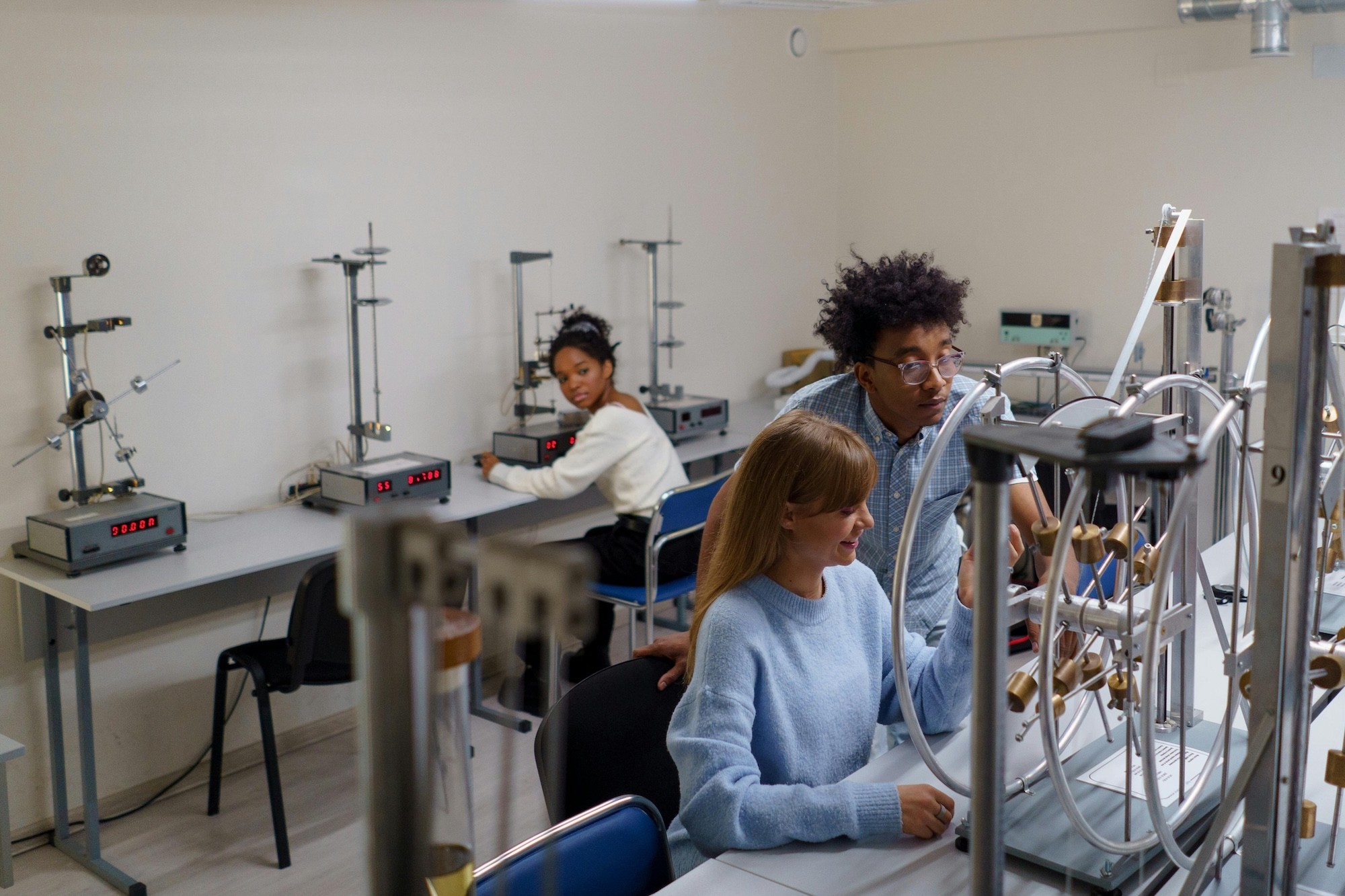
A healthier digital environment for every student
Doorman helps schools reduce distraction and create calmer classrooms — without taking away phones or compromising student privacy.
Student Experience
Focus during class — without giving up their phone.
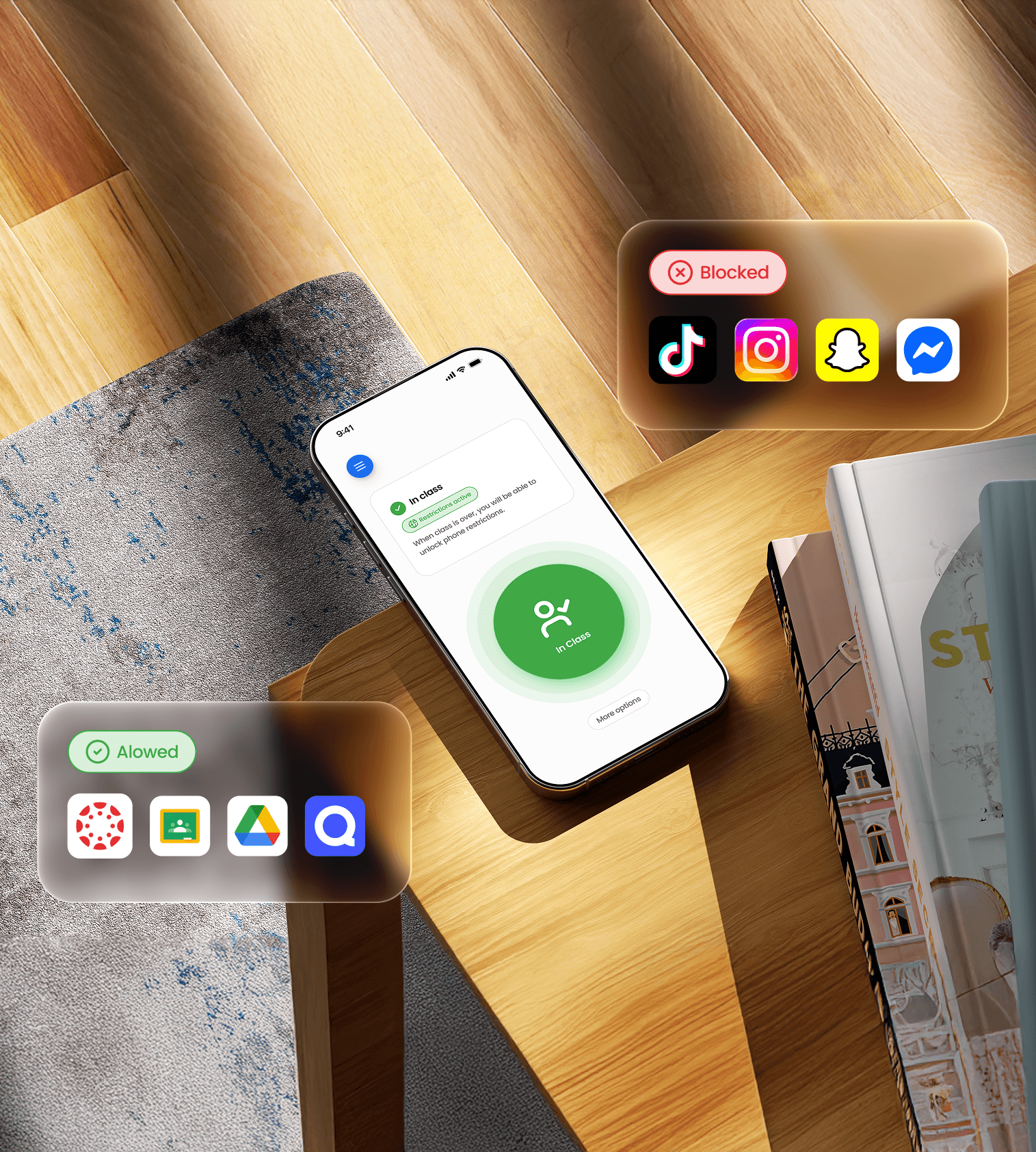
Doorman creates a distraction-free classroom by blocking access to non-school apps during instruction time, while keeping your child’s personal device their own.
"Phones are also the technology that students are most comfortable with. By ignoring this reality, schools may miss opportunities to teach self-regulation, technology literacy and digital citizenship."
International Society for Technology in Education (ISTE)
Jan 8, 2024
No parental setup. Your student just logs in & taps in.
No parental setup. Your student just logs in & taps in.
Protects student information.
Protects student information.
Tailored to your student's schedule.
Tailored to your student's schedule.
Supports healthier digital habits.
Supports healthier digital habits.
Built to protect your student's privacy and independence.
Built to protect your student's privacy and independence.
How it works
Private by design.
Depending on your school's configuration, Doorman either uses iOS and Android's built-in restriction capabilities or a secure VPN. Doorman simply acts like a light switch for school-time rules. Nothing is tracked, stored, or inspected.
Encrypted from end to end.
Your student's information stays encrypted end-to-end. Doorman can never view messages, photos, or browsing.
Encrypted from end to end.
Your student's information stays encrypted end-to-end. Doorman can never view messages, photos, or browsing.
Encrypted from end to end.
Your student's information stays encrypted end-to-end. Doorman can never view messages, photos, or browsing.
No selling of student information
Doorman is compliant with FERPA, SOPIPA, and other similar student data privacy laws.
No selling of student information
Doorman is compliant with FERPA, SOPIPA, and other similar student data privacy laws.
No selling of student information
Doorman is compliant with FERPA, SOPIPA, and other similar student data privacy laws.
Rules apply only during school
Once school ends, student devices will automatically unlock. Students may also Emergecy Unlock at any time.
Rules apply only during school
Once school ends, student devices will automatically unlock. Students may also Emergecy Unlock at any time.
Rules apply only during school
Once school ends, student devices will automatically unlock. Students may also Emergecy Unlock at any time.
Classroom Experience
A more focused classroom through simple, consistent routines.
Doorman reduces disruptions by giving teachers a reliable way to manage phone use, instead of confiscating devices or putting phones in pouches.
Better teacher-student relationships
Teachers get to focus on teaching instead of policing phones.
Better teacher-student relationships
Teachers get to focus on teaching instead of policing phones.
Better teacher-student relationships
Teachers get to focus on teaching instead of policing phones.
More time for learning, and less for conflicts
Schools report calmer classrooms and increased teaching time.
More time for learning, and less for conflicts
Schools report calmer classrooms and increased teaching time.
More time for learning, and less for conflicts
Schools report calmer classrooms and increased teaching time.
Flexible schedules and modes for every school
Class, passing periods, lunch, special schedules are all supported.
Flexible schedules and modes for every school
Class, passing periods, lunch, special schedules are all supported.
Flexible schedules and modes for every school
Class, passing periods, lunch, special schedules are all supported.
Frequently asked questions
Answers to common questions about Doorman and how the system works.

Students tap their phone on a DoorTag, an NFC tag placed in each classroom, or enter a classroom QR code, to activate Doorman's restrictions for that period. Doorman does not use location tracking or geofencing to turn restrictions on or off. Once activated, the phone's other apps, websites, texting, and calls become inaccessible until the scheduled unlock.
It depends on the mode your school uses. Focus Mode installs a secure and private VPN profile, specific to your school, on the phone to restrict internet-based distractions during school hours. Lockdown Mode does not use a VPN at all. It works with the phone's built-in operating system frameworks instead.
Doorman offers two modes schools can choose from. Focus Mode restricts the flow of information to and from the device. Social media, messaging, and multiplayer games are blocked, while school-approved apps and websites can still come through, and schools can whitelist any apps or websites they've approved. Lockdown Mode restricts access to all apps and websites, with no school-approved exceptions, so no functionalities are accessible on the student's phone at all during restricted periods. Your school chooses which mode to use, so check with your school if you're not sure which one applies to your child.
No. Doorman does not request location permissions and does not use geofencing. Restrictions are activated only by a DoorTag tap or a classroom code, and they turn off automatically according to your school's configured schedule, whether that's the end of a class period or the end of the school day.
This depends on how your school has configured Doorman. Some schools keep restrictions on continuously from a student's first tap-in until the scheduled end of the school day. Others set up custom unlock windows, such as unlocking automatically between classes. Check with your school to find out how it's configured for your child. In both, the phone unlocks automatically at the end of the school day, following the school's bell schedule, including on adjusted schedules.
Yes, if your school chooses to use it that way. Tap-ins can be configured to also record attendance directly in your school's student information system (SIS), either for individual class periods or for the whole day. Attendance marking is separate from phone restrictions, so schools decide independently how they want to configure each one.
For an early dismissal, a student can scan an unlocked QR code at the front office to unlock their phone, or a school administrator can unlock it remotely. Check with your school's front office for its specific early dismissal process.
This works the same way it did before Doorman. Your child should see the school nurse, and if they need to be dismissed, the school will contact you directly using its normal process.
The phone unlocks automatically according to your student's schedule, typically at the end of the school day, or at another time your school has configured. Any student can also unlock their phone at any time using Emergency Unlock. See the next question for details.
Yes. Any student can trigger an Emergency Unlock at any time from within the app, which immediately restores full access to the phone, including calls, texting, and 911, and notifies school administrators. On Focus Mode, calling is always accessible to students. If you need to reach your child urgently, the fastest way is usually to call your school's main office.
Doorman does not interfere with a school's emergency procedures, and Emergency Unlock remains available to students at all times, including during a lockdown or evacuation. Schools have the ability to centrally unlock student cellphones as well.
We collect the basic information needed to set up and run student accounts, including a student's name, school email, and grade, along with activity information related to Doorman's use, such as tap-in events. Doorman cannot access or store the content of a student's messages, photos, emails, or browsing history. For the full list of what we collect, see our Privacy Policy.
No. Doorman executes a Data Privacy Agreement (DPA) with each school or district that prohibits using student data for targeted advertising and requires compliance with applicable federal and state student privacy laws.
No. Doorman does not use Mobile Device Management (MDM). It cannot remotely lock or erase the phone, read personal content such as texts, photos, contacts, or files, install or remove apps, or prevent your child from removing the Doorman configuration. It provides no remote access, screen viewing, or general phone monitoring.
Doorman's core permissions depend on your child's phone and the mode your school uses. In Focus Mode, Doorman requests VPN permissions that lets it restrict internet access during school. In Lockdown Mode on Android, it requires Android's accessibility permission to detect access to blocked apps. In Lockdown Mode on iOS, it uses Apple's built-in on-device frameworks, so no special permission is required. Doorman may also request optional permissions: camera access for scanning QR codes, Bluetooth for tap-in when WiFi isn't available. Also, on Android, Schedule Exact Alarms is requested so the app can automatically unlock at the end of the day.
It depends on your school's configuration. Lockdown Mode: an existing VPN set to on-demand, including Bark's, will automatically reconnect on its own once Doorman's restrictions end for the day. Focus Mode: Doorman's own VPN becomes the device's active VPN during the school day and disconnects any other VPN that was running, including Bark's. It does not automatically resume when Doorman unlocks. It needs to be turned back on manually. If your VPN based parental control needs to stay active during school hours, you can disable it during the school day and re-enable it after. Talk to your school if this isn't workable for your family.
No. Doorman's battery usage is comparable to what a student would typically use on social media apps throughout the day. The app itself is small and runs in the background.
That's fine. Not every student needs to use Doorman. Let your school know if this applies to your child so they can note it appropriately. Your school can tell you more about how this is handled.
Students tap their phone on a DoorTag, an NFC tag placed in each classroom, or enter a classroom code, to activate Doorman's restrictions for that period. Doorman does not use location tracking or geofencing to turn restrictions on or off. Once activated, the phone's other apps, websites, texting, and calls become inaccessible until the scheduled unlock.
Doorman offers two modes schools can choose from. Focus Mode restricts the flow of information to and from the device. Social media, messaging, and multiplayer games are blocked, while school-approved apps and websites can still come through, and schools can whitelist any apps or websites they've approved. Lockdown Mode restricts access to all apps and websites, with no school-approved exceptions, so no functionalities are accessible on the student's phone at all during restricted periods. Your school chooses which mode to use, so check with your school if you're not sure which one applies to your child.
No. Doorman's battery usage is comparable to what a student would typically use on social media apps throughout the day. The app itself is small and runs in the background.
No. Doorman does not request location permissions and does not use geofencing. Restrictions are activated only by a DoorTag tap or a classroom code, and they turn off automatically according to your school's configured schedule, whether that's the end of a class period or the end of the school day.
This depends on how your school has configured Doorman. Some schools keep restrictions on continuously from a student's first tap-in until the scheduled end of the school day. Others set up custom unlock windows, such as unlocking automatically between classes. Check with your school to find out how it's configured for your child. In both, the phone unlocks automatically at the end of the school day, following the school's bell schedule, including on adjusted schedules.
Yes, if your school chooses to use it that way. Tap-in can be configured to also record attendance directly in your school's student information system (SIS), either for individual class periods or for the whole day. Attendance tracking is separate from phone restrictions, so schools decide independently how they want to configure each one.
The phone unlocks automatically according to your school's schedule, typically at the end of the school day, or at another time your school has configured. Any student can also unlock their phone at any time using Emergency Unlock. See the next question for details.
Yes. Any student can trigger Emergency Unlock at any time with an in-app button, which immediately restores full access to the phone, including calls, texting, and 911, and notifies school administrators. If you need to reach your child urgently, the fastest way is usually to call your school's main office.
For an early dismissal, a student can scan a dynamic QR code at the front office to unlock their phone, or a school administrator can unlock it remotely. Check with your school's front office for its specific early dismissal process.
This works the same way it did before Doorman. Your child should see the school nurse, and if they need to be dismissed, the school will contact you directly using its normal process.
Doorman does not interfere with a school's emergency procedures, and Emergency Unlock remains available to students at all times, including during a lockdown or evacuation. Schools have always had the ability to centrally unlock all student phones at once as well.
We collect the basic information needed to set up and run student accounts, including a student's name, school email, and grade, so we can configure their account, along with basic device and activity information related to Doorman's use, such as tap-in events. Doorman does not access or store the content of a student's messages, photos, emails, or browsing history. For the full list of what we collect, see our Privacy Policy.
No. Doorman does not use Mobile Device Management (MDM). It cannot remotely lock or erase the phone, read personal content such as texts, photos, contacts, or files, install or remove apps, or prevent your child from removing the Doorman configuration. It provides no remote access, screen viewing, or general phone monitoring.
No. Doorman executes a Data Privacy Agreement (DPA) with each school or district that prohibits using student data for targeted advertising and requires compliance with applicable federal and state student privacy laws.
It depends on the mode your school uses. Focus Mode activates a secure and private VPN profile, specific to your school, on the phone to block internet-based distractions during restricted periods. Lockdown Mode does not use a VPN at all. It works with the phone's built-in operating system controls instead.
It depends on your school's configuration. In Lockdown Mode, an app like Bark that's set to reconnect automatically will do so on its own once Doorman's restrictions end for the day. In Focus Mode, Doorman becomes the active connection on the device during the school day and disconnects other apps like Bark. It doesn't turn back on by itself, so you'll need to re-enable it manually. Talk to your school if this isn't workable for your family.
That's fine. Not every student needs to use Doorman. Let your school know if this applies to your child so they can note it appropriately. Your school can tell you more about how this is handled.
Students tap their phone on a DoorTag, an NFC tag placed in each classroom, or enter a classroom QR code, to activate Doorman's restrictions for that period. Doorman does not use location tracking or geofencing to turn restrictions on or off. Once activated, the phone's other apps, websites, texting, and calls become inaccessible until the scheduled unlock.
It depends on the mode your school uses. Focus Mode installs a secure and private VPN profile, specific to your school, on the phone to restrict internet-based distractions during school hours. Lockdown Mode does not use a VPN at all. It works with the phone's built-in operating system frameworks instead.
Doorman offers two modes schools can choose from. Focus Mode restricts the flow of information to and from the device. Social media, messaging, and multiplayer games are blocked, while school-approved apps and websites can still come through, and schools can whitelist any apps or websites they've approved. Lockdown Mode restricts access to all apps and websites, with no school-approved exceptions, so no functionalities are accessible on the student's phone at all during restricted periods. Your school chooses which mode to use, so check with your school if you're not sure which one applies to your child.
No. Doorman does not request location permissions and does not use geofencing. Restrictions are activated only by a DoorTag tap or a classroom code, and they turn off automatically according to your school's configured schedule, whether that's the end of a class period or the end of the school day.
This depends on how your school has configured Doorman. Some schools keep restrictions on continuously from a student's first tap-in until the scheduled end of the school day. Others set up custom unlock windows, such as unlocking automatically between classes. Check with your school to find out how it's configured for your child. In both, the phone unlocks automatically at the end of the school day, following the school's bell schedule, including on adjusted schedules.
Yes, if your school chooses to use it that way. Tap-ins can be configured to also record attendance directly in your school's student information system (SIS), either for individual class periods or for the whole day. Attendance marking is separate from phone restrictions, so schools decide independently how they want to configure each one.
For an early dismissal, a student can scan an unlocked QR code at the front office to unlock their phone, or a school administrator can unlock it remotely. Check with your school's front office for its specific early dismissal process.
This works the same way it did before Doorman. Your child should see the school nurse, and if they need to be dismissed, the school will contact you directly using its normal process.
The phone unlocks automatically according to your student's schedule, typically at the end of the school day, or at another time your school has configured. Any student can also unlock their phone at any time using Emergency Unlock. See the next question for details.
Yes. Any student can trigger an Emergency Unlock at any time from within the app, which immediately restores full access to the phone, including calls, texting, and 911, and notifies school administrators. On Focus Mode, calling is always accessible to students. If you need to reach your child urgently, the fastest way is usually to call your school's main office.
Doorman does not interfere with a school's emergency procedures, and Emergency Unlock remains available to students at all times, including during a lockdown or evacuation. Schools have the ability to centrally unlock student cellphones as well.
We collect the basic information needed to set up and run student accounts, including a student's name, school email, and grade, along with activity information related to Doorman's use, such as tap-in events. Doorman cannot access or store the content of a student's messages, photos, emails, or browsing history. For the full list of what we collect, see our Privacy Policy.
No. Doorman executes a Data Privacy Agreement (DPA) with each school or district that prohibits using student data for targeted advertising and requires compliance with applicable federal and state student privacy laws.
No. Doorman does not use Mobile Device Management (MDM). It cannot remotely lock or erase the phone, read personal content such as texts, photos, contacts, or files, install or remove apps, or prevent your child from removing the Doorman configuration. It provides no remote access, screen viewing, or general phone monitoring.
Doorman's core permissions depend on your child's phone and the mode your school uses. In Focus Mode, Doorman requests VPN permissions that lets it restrict internet access during school. In Lockdown Mode on Android, it requires Android's accessibility permission to detect access to blocked apps. In Lockdown Mode on iOS, it uses Apple's built-in on-device frameworks, so no special permission is required. Doorman may also request optional permissions: camera access for scanning QR codes, Bluetooth for tap-in when WiFi isn't available. Also, on Android, Schedule Exact Alarms is requested so the app can automatically unlock at the end of the day.
It depends on your school's configuration. Lockdown Mode: an existing VPN set to on-demand, including Bark's, will automatically reconnect on its own once Doorman's restrictions end for the day. Focus Mode: Doorman's own VPN becomes the device's active VPN during the school day and disconnects any other VPN that was running, including Bark's. It does not automatically resume when Doorman unlocks. It needs to be turned back on manually. If your VPN based parental control needs to stay active during school hours, you can disable it during the school day and re-enable it after. Talk to your school if this isn't workable for your family.
No. Doorman's battery usage is comparable to what a student would typically use on social media apps throughout the day. The app itself is small and runs in the background.
That's fine. Not every student needs to use Doorman. Let your school know if this applies to your child so they can note it appropriately. Your school can tell you more about how this is handled.